
What you are trying to set
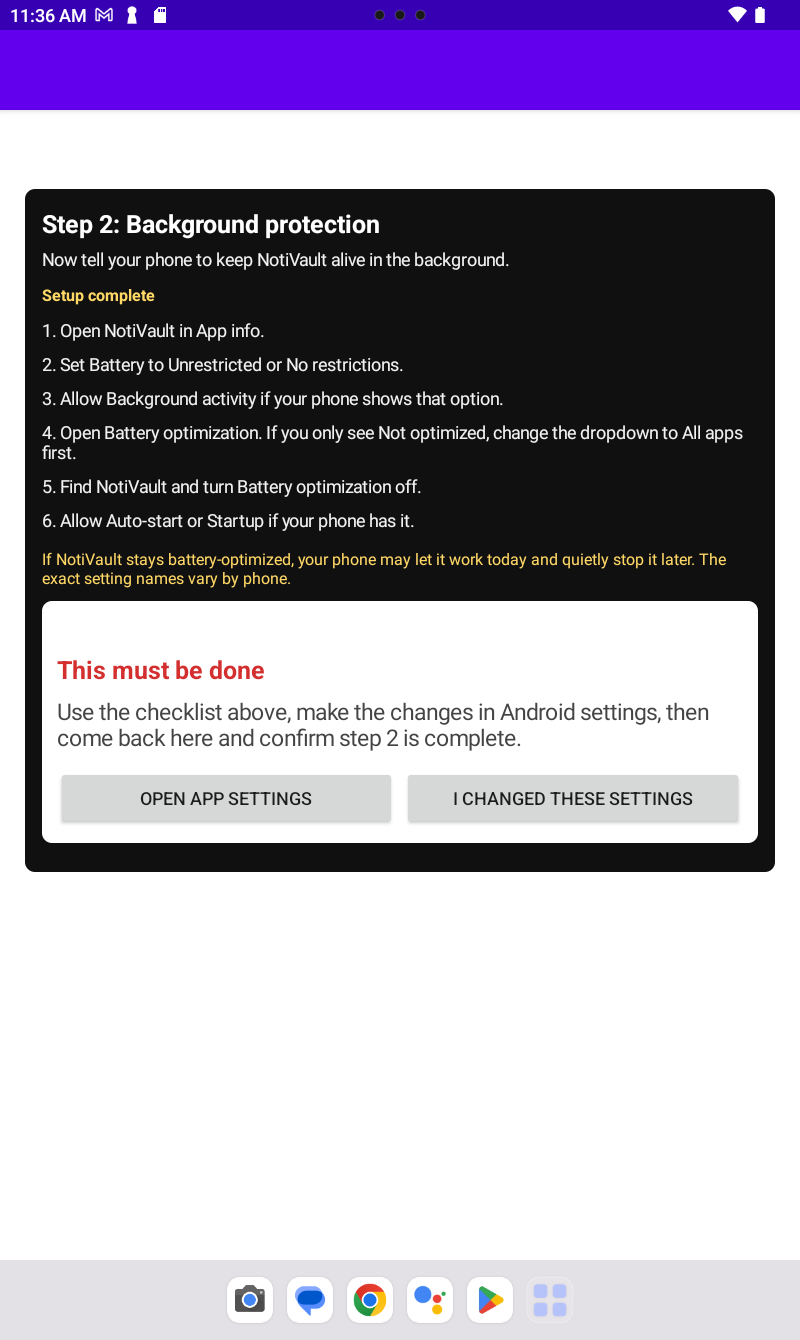
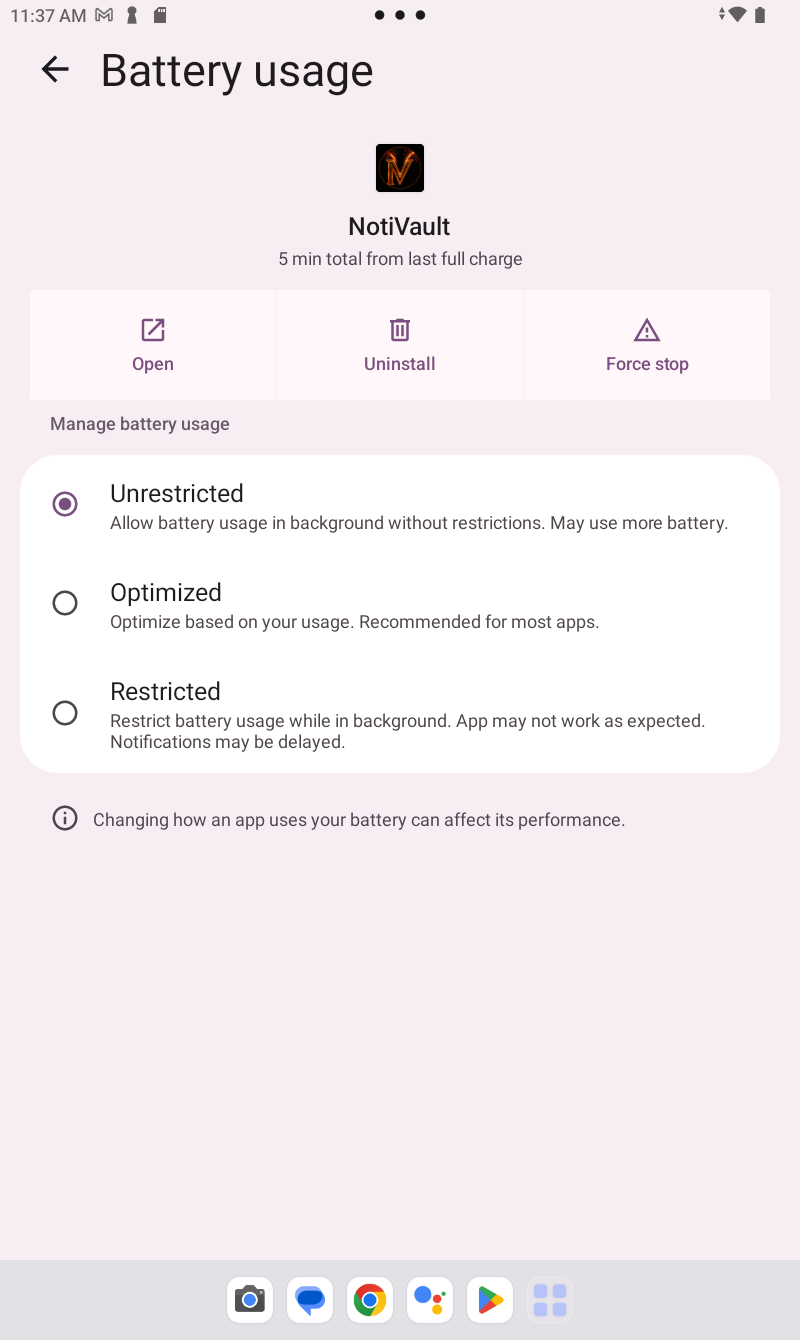
- Battery mode: Unrestricted, No restrictions, or Don't optimize — not Optimized or Restricted.
- Battery optimization: NotiVault excluded (sometimes under Battery → Battery optimization → All apps).
- Background activity: Allowed, if your phone shows that toggle.
- Auto-start / Startup: On, on OEMs that include a startup manager (common on some Samsung, Xiaomi, Oppo, and Lenovo builds).
Common label swaps by brand
- Stock Android / Pixel: Apps → NotiVault → Battery → Unrestricted.
- Samsung: Apps → NotiVault → Battery → Unrestricted; check Sleeping apps and Auto optimize lists so NotiVault is not limited.
- Xiaomi / Redmi / POCO: Apps → Manage apps → NotiVault → Battery saver → No restrictions; also check Autostart.
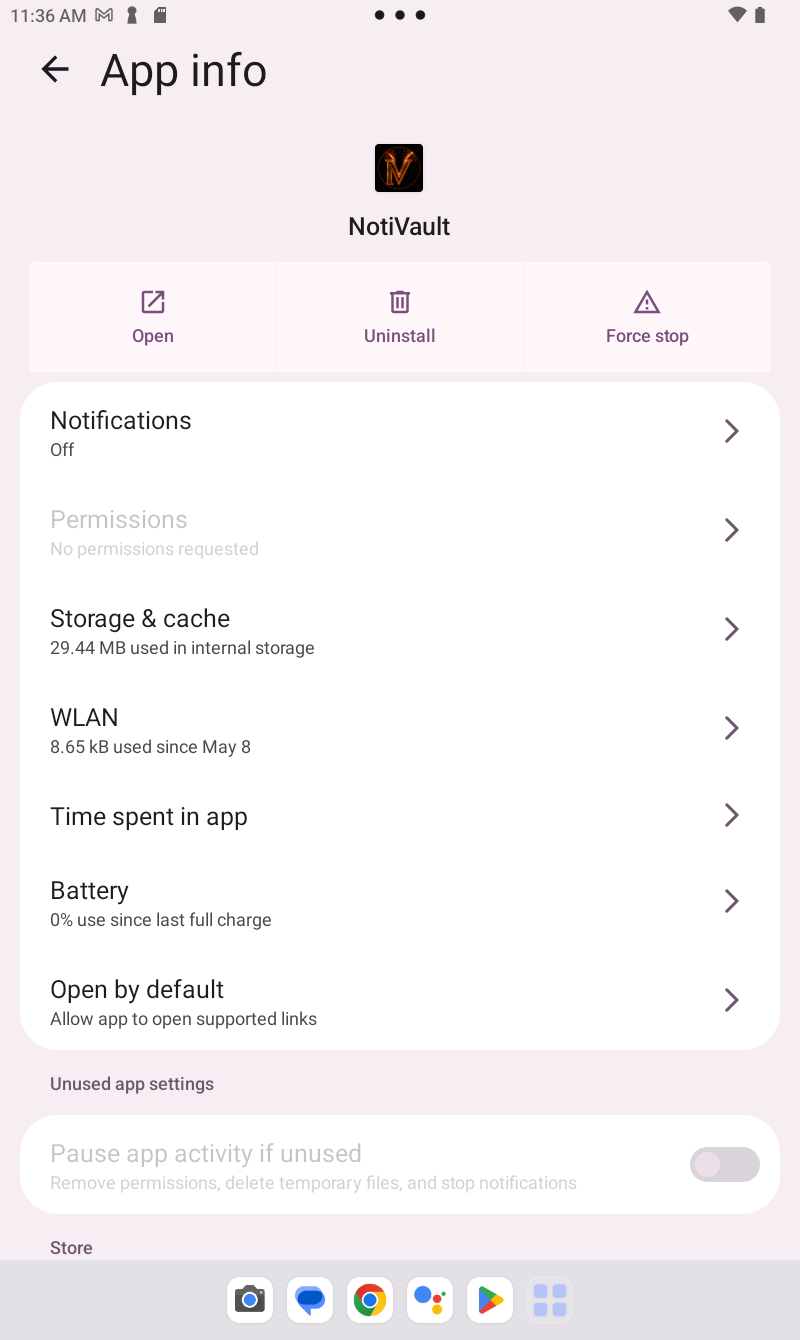
- Lenovo Tab (example below): App info → Battery → Unrestricted.
- TCL and similar: App info → Battery → Unrestricted or Don't optimize.
If a menu name differs, pause and match the intent from the in-app checklist — do not skip the step because the wording changed.
After onboarding
When both steps are complete, NotiVault runs a short 13-tip tour, then opens your timeline. Open the app once so it can pick up notices already in your shade — not only brand-new ones. Replay the tour anytime from Settings → Tutorial.
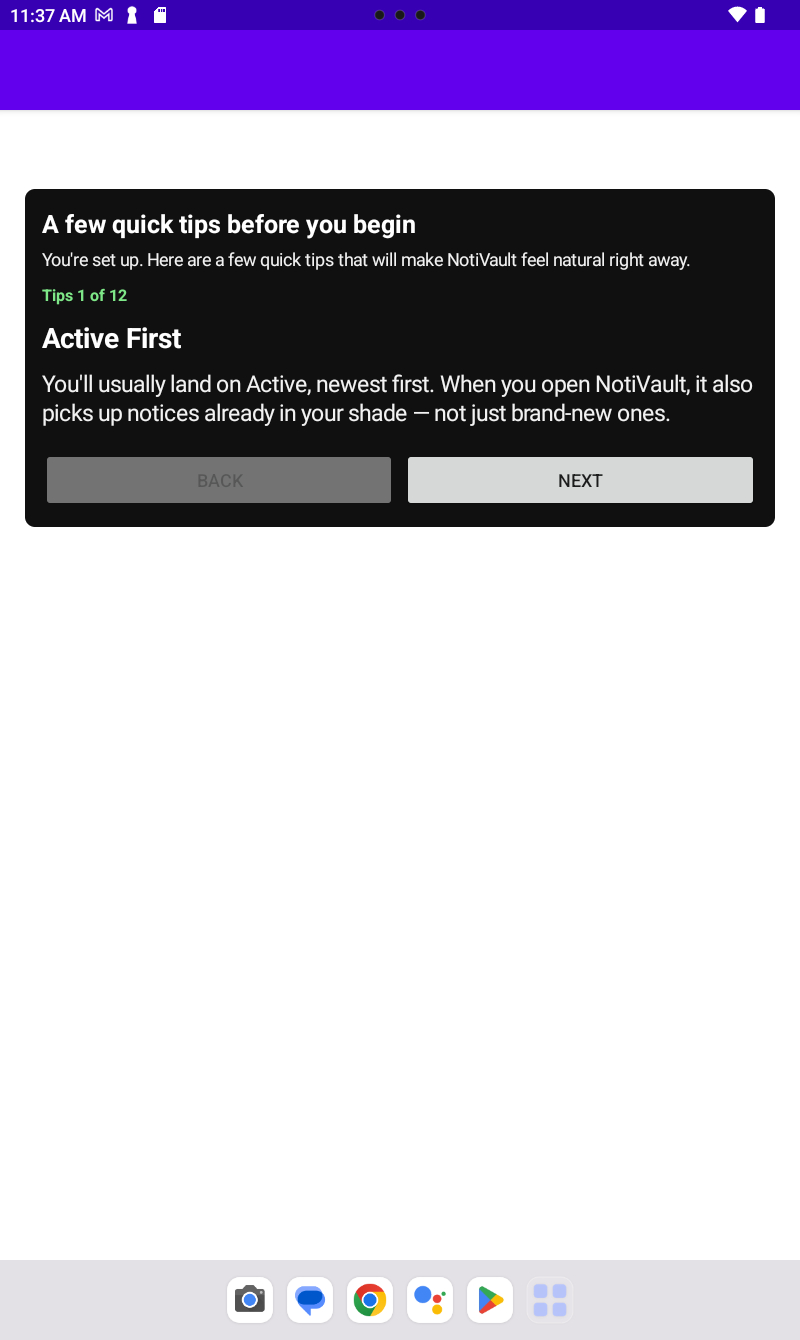
Tips tour at a glance
- Active First
- Three Views (Active, Dismissed, Total)
- Dismissed View
- Total View
- Grouped Timeline
- Expand Older Notices
- Top Sources
- Zoom by App
- Filters
- Notice Detail
- NotiVault Pro
- Settings That Matter
- Use It Naturally
Using NotiVault day to day
- Use Active for live shade notices, Dismissed for cleared copies, Total for full history.
- Tap a notice for detail; expand groups with the in-timeline expander.
- Try Top Sources and Zoom by App when one app dominates.
- Set filters, theme, and retention in Settings — Trial vs Pro limits apply to phrases and vault backup.
If capture stops later
- Re-check notification access — Android updates sometimes revoke it. See Onboarding 1.
- Re-walk Step 2 — battery limits often return after OS upgrades or “optimize battery” prompts.
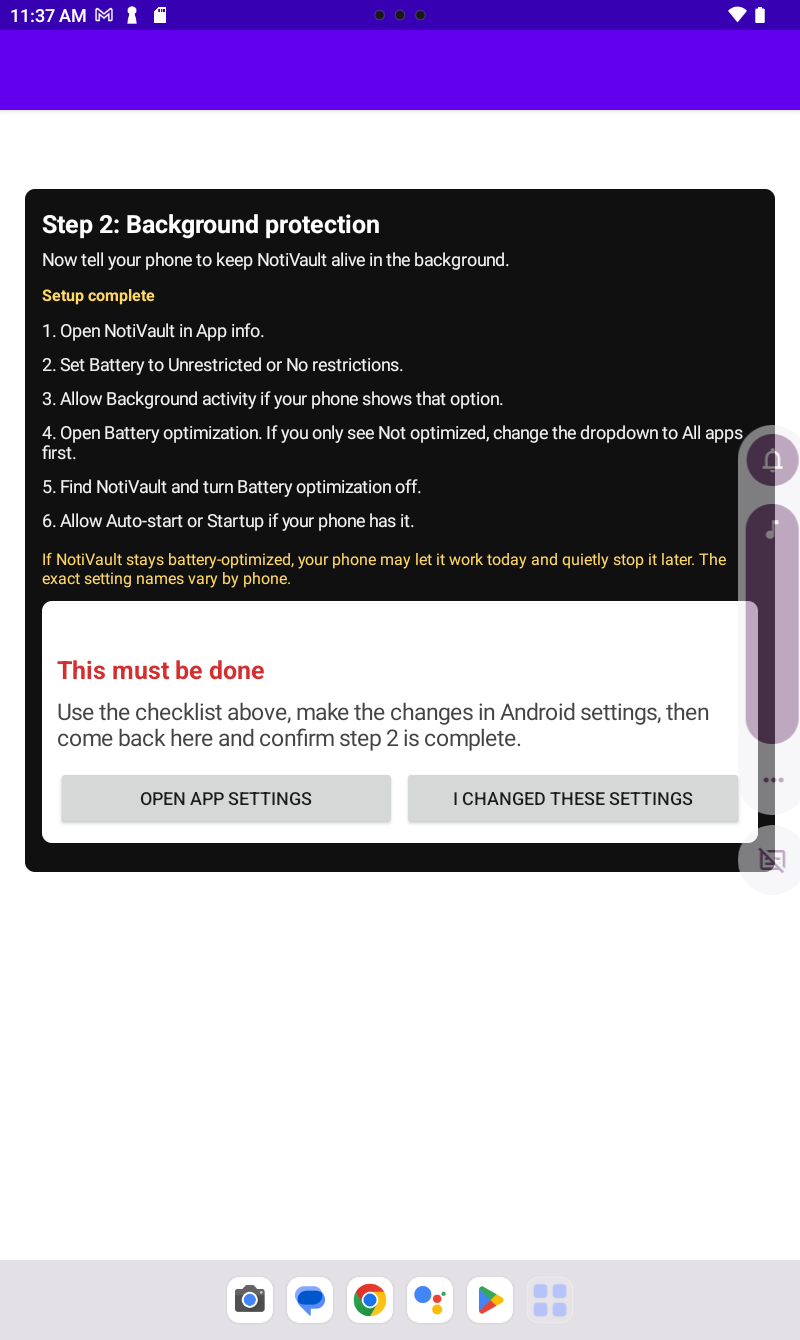
- Confirm you tapped I CHANGED THESE SETTINGS; opening App info alone is not enough.
Previous: Onboarding 1 — Notification access · Onboarding hub · NotiVault overview